











Alright, so hopefully by now, you've had a chance to integrate the Luciq SDK for iOS into your application and have received your first bug, crash, and feedback report. If you still haven't, you can read here to learn how.
For this post, I want to explain some of the features available with the SDK and how you can really tweak and customize behavior to fit your application. User experience is a very crucial part of your app and here at Luciq, we believe that our SDK should be adaptive to allow for the customization of different elements.
In this post we'll discuss the following options:
1. Invocation Methods
2. Prompt Options
3. End User Data (User Attributes and Identifying User)
4. UI (Colors, Locale, Content)
5. Welcome Messages
6. Network Requests
7. Custom Categories
Let's dive in.
1. Invocation Methods
By default, Luciq is invoked when the device is shaken. The reason we chose the shake gesture to invoke the feedback process is that it is the behavior that a lot of frustrated users exhibit. We have all shaken our phones at one point due to something not working right. However, we know that sometimes the shake gesture is used in other applications.
You can also set the SDK to invoke the feedback process through one or multiple custom methods:
- Panning from the right edge of the screen (one-finger swipe from right to left)
- Two-finger swipe from right to left
- Tapping on a floating button above your app's UI
- Taking a screenshot
To customize the invocation events, pass the values of the IBGBugReporting enum when starting the SDK.
Swift
Objective-C
Invocation Events
If you want to invoke the SDK manually or under certain conditions only, you can use the None event to disable the out-of-the-box invocation methods.
If you are using the shake gesture, you can set the shaking threshold as described here.
If you are using the floating button, you can set its default position as explained here.
Swift
Objective-C
Changing the Invocation Method
To change the invocation method, call the following APIs at runtime.
Swift
Objective-C
Programmatic Invocation
If you want to invoke the Luciq SDK manually, use the invoke method.
Swift
Objective-C
For more ways to customize the Luciq for iOS invocation methods, see our documentation.
2. Prompt Options
When your users invoke the Luciq SDK with any of the above methods, a modal appears with your plan's enabled features by default. In most cases, the prompt options are:
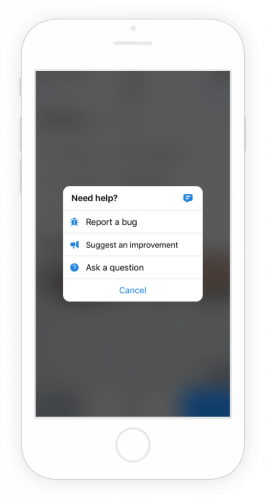
You can control which options are displayed by enabling or disabling any of the features separately. When only a single option is enabled, the prompt options modal does not pop up after invocation and the flow goes immediately to the bug report, feedback, or in-app chat view. If all options are disabled, the bug report becomes the default view.
Swift
Objective-C
3. End-User Data
We collect some data to help you identify any user who submits a bug report or sends you feedback, and you can customize this data according to your needs.

User Email
By default, a valid email address is required to submit any report. You can also pre-fill the email field with a specific email address. We recommend calling this API as soon as your user logs into your app.
Swift
Objective-C
You can also allow your users to send bug reports or feedback without entering an email address.
Swift
Objective-C
User Attributes
If all the information that we capture about your users and their devices isn’t enough and you’d like to add more information, we have a section in each report for that specific purpose.
To collect additional information about your users who submit bugs and feedback, you can assign custom attributes to your users. These attributes appear in your dashboard along with each report and you can use them to filter reports later for easy access and further analysis.
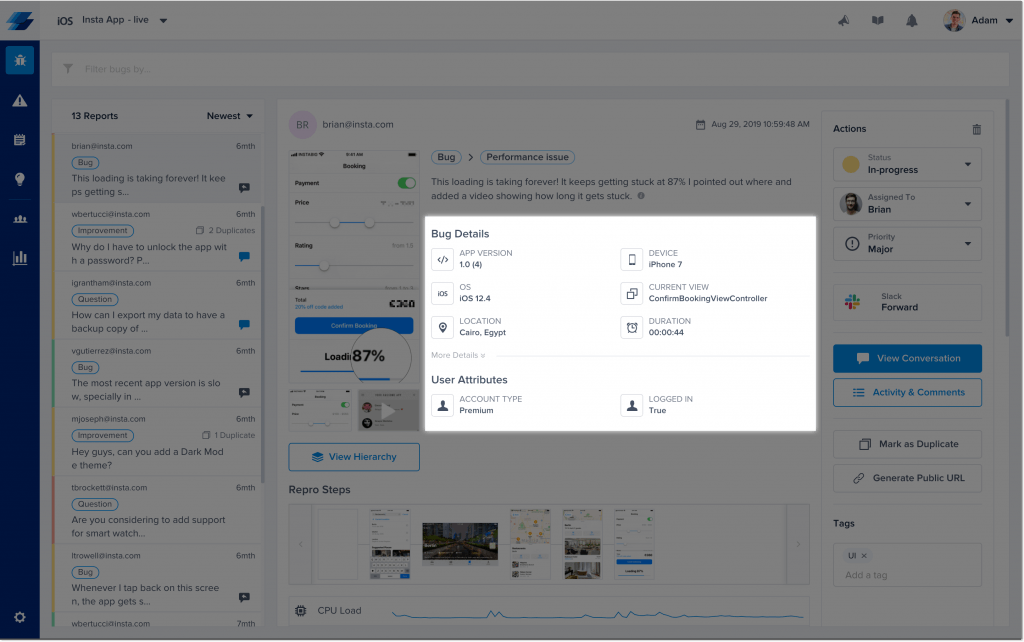
To add a new user attribute, call the following method at your initialization step, or perhaps after a user has logged in.
Swift
Objective-C
For more ways to customize your users' data, see our Luciq for iOS documentation.
4. UI
With Luciq for iOS, you can customize certain design elements to match your brand and minimize disrupting your users’ experience in your app.

Colors
The Luciq SDK has two color themes: light and dark. You can set which theme to use in your app.
Swift
Objective-C
You can also set the accent color of the UI elements that indicate interactivity or a call to action to align with your brand's colors.
Swift
Objective-C
Locale
By default, the SDK will automatically use the current locale of your user's device. To override it, call the following API. For the full list of possible locales, see our Luciq iOS documentation.
Swift
Objective-C
Content
To customize any of the text content displayed in the SDK, you can override each individual string. For the full list of keys, see our Luciq iOS documentation.
Swift
Objective-C
5. Welcome Messages
By default, a welcome message is shown to your users within the first 10 seconds of their first session after you integrate the SDK in your app. The message includes instructions for how to invoke Luciq in order to report a bug or send feedback.
Beta Mode
For beta apps, a three-step onboarding modal is displayed, as shown below.

Live Mode
For production apps, a single welcome message is displayed depending on the invocation method that you set.
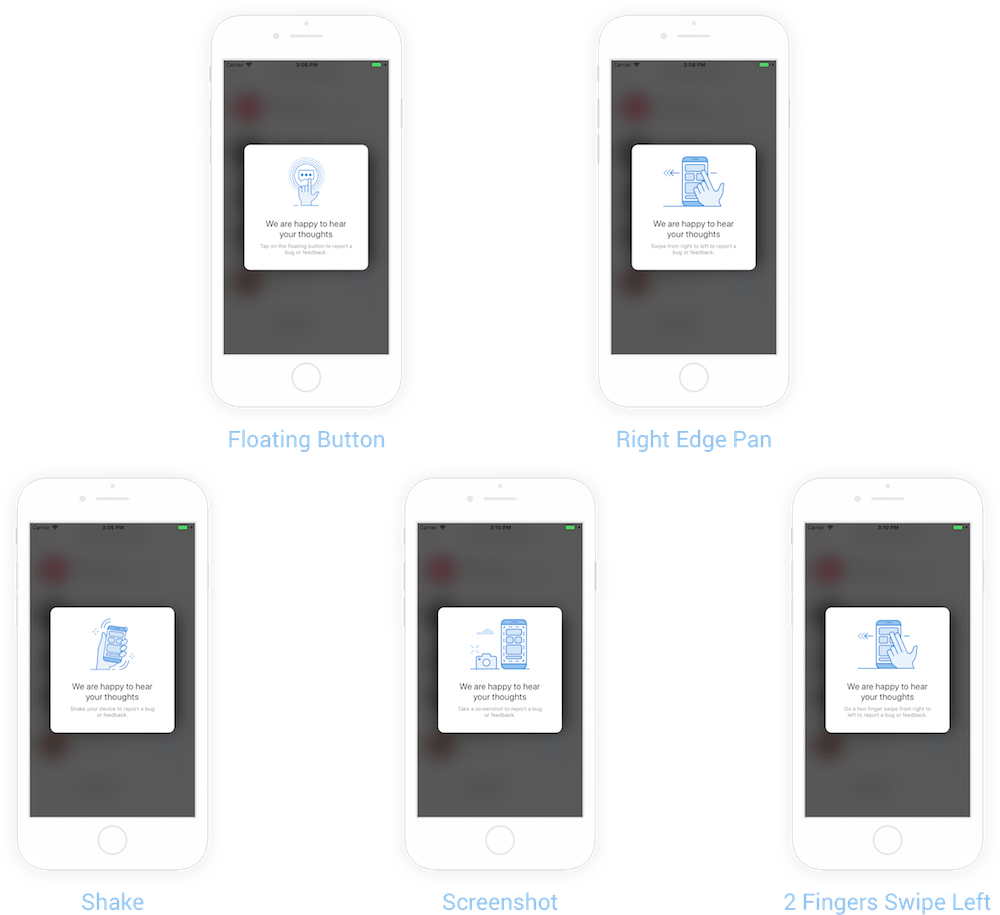
Out of the box, the welcome message is set by default to live mode. To change or disable the welcome mode, use the following method.
Swift
Objective-C
Manual End User Onboarding
For full control, you can display the welcome message manually.
Swift
Objective-C
6. Network Requests
Luciq automatically logs all network requests performed by your app and network responses. If you want to hide certain requests, like those that contain usernames and passwords, or specific data, like authentication tokens, you can use the following methods.
Omitting Network Requests From Logs
Swift
Objective-C
Obfuscating Network Requests in Logs
Swift
Objective-C
Obfuscating Network Responses in Logs
Swift
Objective-C
To learn more about customizing logs in the Luciq SDK for iOS, see our documentation.
7. Custom Categories
To help you triage bug reports and feedback faster, you can enable custom categories to appear after the prompt options modal. This allows your testers or users to self-select the appropriate category of the bug they are reporting.

To customize these settings, simply navigate to your app settings in your Luciq dashboard—no code required.
For even more customizations, check out our documentation or contact us at support@luciq.ai. We're happy to help you adapt the Luciq SDK to fit your app and users' behavior.