








From day one, we were determined to always keep the integration of the Luciq SDK a breeze. And we’ve been able to achieve this successfully by keeping it at just two lines of code that you add to your app in less than 60 seconds.
We’ve also been adding lots of customizations based on your feedback and extra features that need more SDK calls to enable or customize.
In previous posts, we covered the most popular Luciq SDK customizations for iOS and Android. Now, I'd like to share a few pro tips and tricks for how to get the most out of Luciq's hidden features.
- Extended Bug Report
- Attachments
- Private Views
- Bug Report Fields
- Push Notifications
Let's get started.
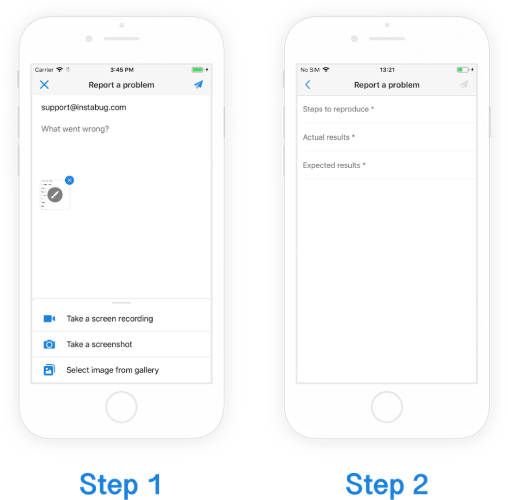
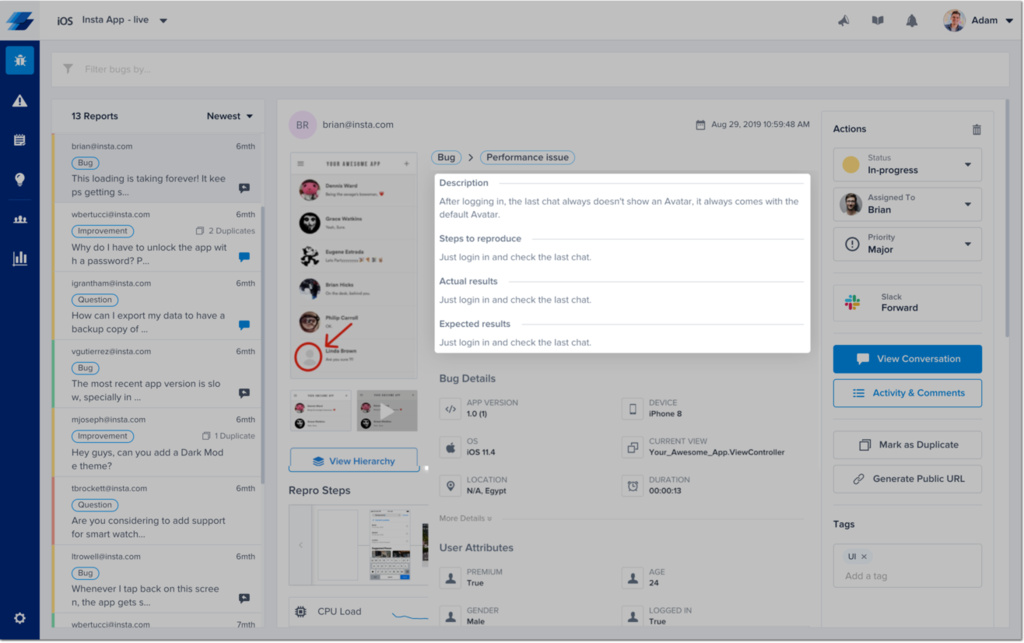
If you are using the Luciq SDK for testing, you can enable the Extended Bug Report to help structure your bug reports. After your testers describe the problem and attach screenshots, a second view appears where they can enter the steps to reproduce the bug, actual results, and expected results.
These fields are displayed in your dashboard along with each bug report. For the relevant APIs to enable the Extended Bug Report with optional or required fields, see our documentation for iOS and Android.
With every bug or feedback report, a screenshot is automatically captured that your users can draw on, magnify, or blur. You also have the option to enable or disable other attachment types as well as attach additional files with each report.
Luciq Attachments
By default, extra screenshots, gallery images, and screen recordings are enabled with your plan. To customize which attachment types are enabled, see our documentation for iOS and Android.
Additional Files
You can also attach specific local files, up to three, to each bug report. The files are copied when the reports are sent, which means the versions attached will always be the newest. For the API methods to add additional files, see our iOS and Android docs.
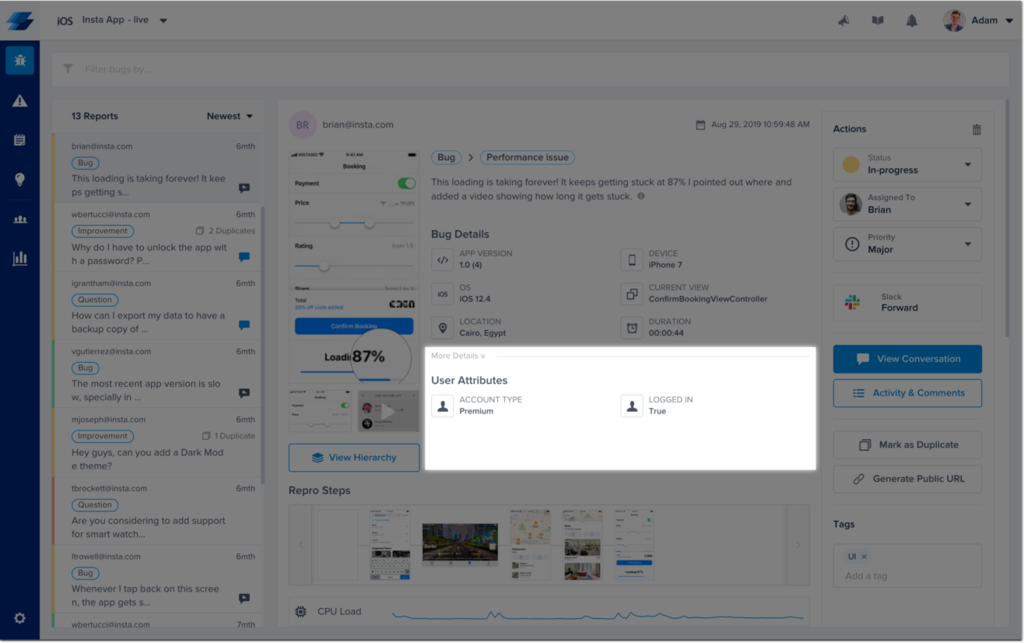
To safeguard your users' privacy and security, you can hide single views in your app. For example, you can make credit card details hidden from visual attachments. Here's how:
iOS
Android
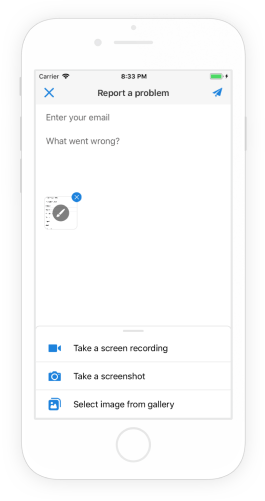
Remove E-mail Field
By default, the e-mail field is required in bug and feedback reports, but you can also make it optional or remove it entirely in case you want anonymous feedback or you're conducting internal testing and don't need to identify the reporter. For the relevant API methods, see our documentation for iOS and Android.
Make Description Required
By default, the description field is optional for bug and feedback reports, but you can make it mandatory. Here's how: iOS and Android.
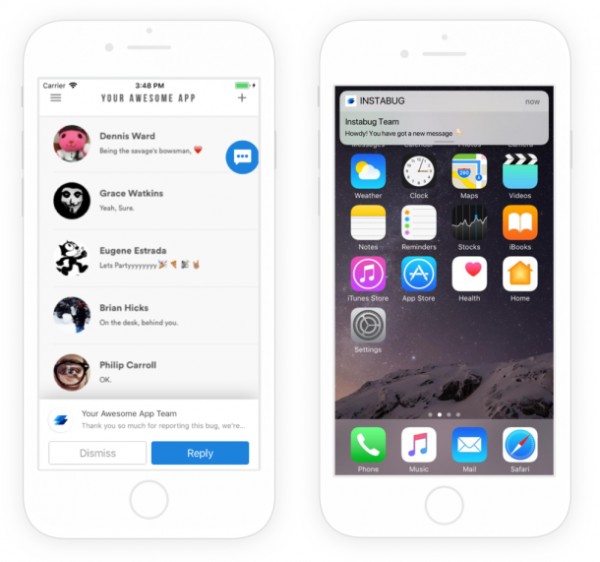
Whenever you send a message to a user, a notification is automatically shown in your app. You can also enable push notifications to be sent to their devices. For details, check our documentation for iOS and Android.
If you haven't already, be sure to check out the most common Luciq SDK customizations for iOS and Android. For even more customizations, check out our full documentation or contact us anytime at support@luciq.ai. We're happy to help you customize the Luciq SDK for your app and users' behavior.