












Luciq speeds up your development process by enabling users to file context-rich bug reports in seconds with the shake of a phone. But did you know Luciq can also streamline your mobile app user feedback process? Whether you’re a developer, product manager, or customer support specialist, you’ll find ways to accelerate your workflow by using labels and integrating your favorite third-party tools. Luciq helps you with organizing mobile app user feedback and eliminating extra steps from your workflow.
In this blog, we’ll go over all the different ways you can organize your feedback, automate replies and set up forwarding to third-party platforms like Zendesk, Slack, Trello, and more.
Organizing mobile app user feedback in Luciq
What’s a day at work like when Luciq is part of your workflow?
Luciq is stacked with all the tools, features, and integrations you need to shorten your workflow and maximize your time. Let’s go over how you can set up your Luciq preferences for simplicity and speed, step by step.
Report categories
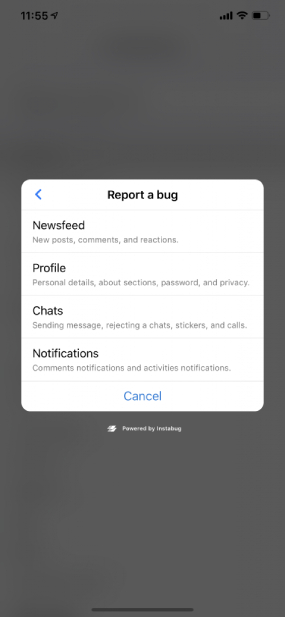
When your users invoke Luciq, they’ll see your main menu. By default, there are three menu items: Report a Bug, Suggest an Improvement, and Ask a Question. You don’t want to spend your time manually sorting reports, so Luciq allows you to set custom report categories for your users to choose from. Your bug reports now be tagged and filtered according to their categories. Not only can you set up categories without any code changes, but you can set up automatic replies and forward issues to third-party tools automatically using Rules (outlined in the Rules section below).
Tags, attributes, and labels
Want to filter your data further? No problem. You can create custom tags for user attributes and specific in-app events. For example, you might find it convenient to label users from a certain age group or separate paying users from non-paying users. As for events, these could include completing a task, making a purchase, or using a feature.
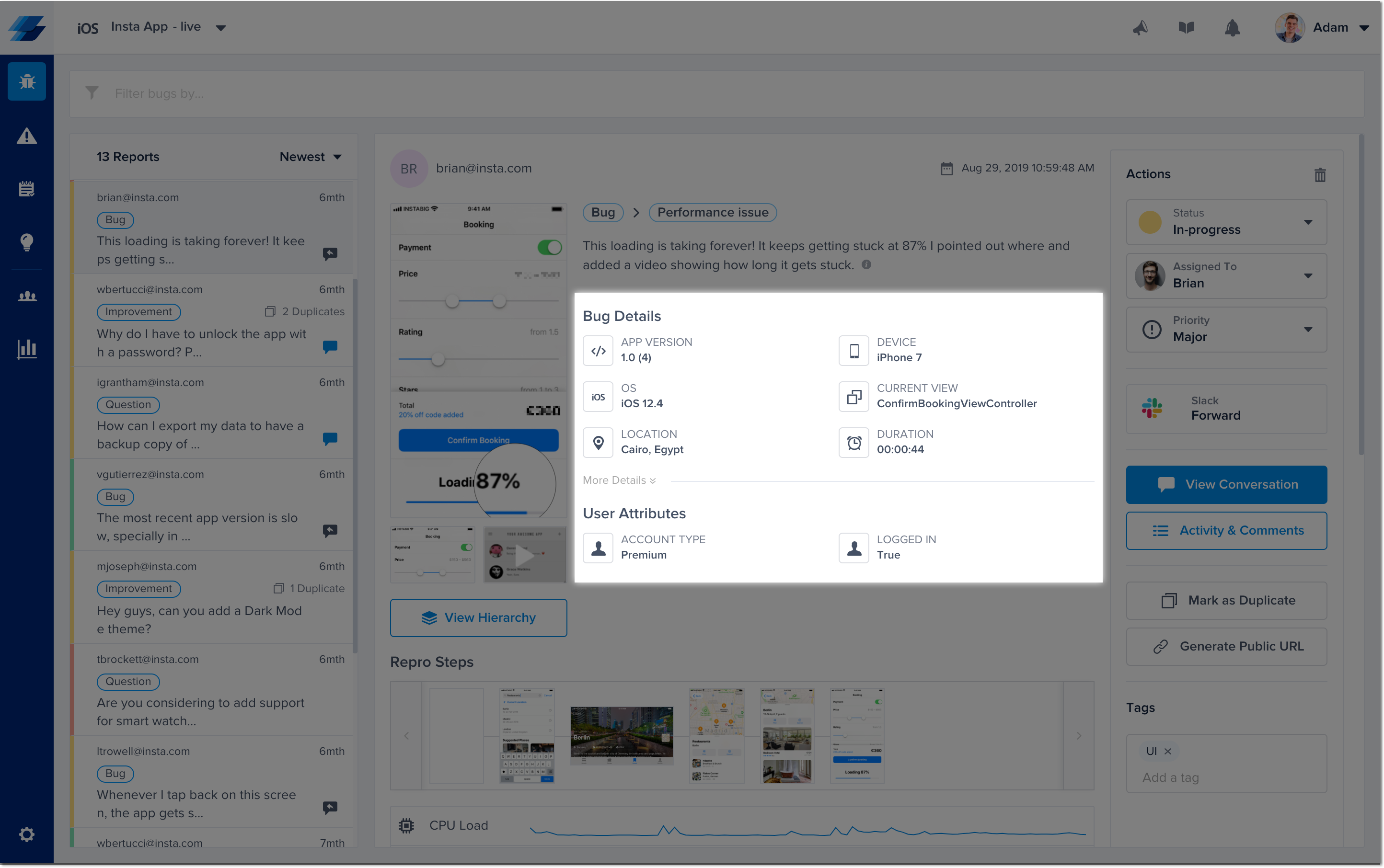
Assigning attribute tags to your user profiles is simple and will require just a minute of your time. In our docs, you’ll find detailed guides to setting attributes on iOS and Android (as well as cross-platform links). Once set, tags will appear in user profiles, so you’ll see important details at a glance.
Luciq lets you add custom event tags to your bug and crash reports. The process for setting this up is similar to setting user attributes. Here are the guidelines for iOS and Android. You can use custom events for survey targeting and Rule creation.
Saved replies
The fastest way to respond to repetitive comments or questions is with a saved reply. Luciq allows you to write and save replies so they’re easily accessible whenever you need them.
To create or edit a saved reply, select settings from the side navigation bar on your dashboard, then select saved replies from the settings menu.
Rules and reply automation
Do you have specific replies for specific situations? Do you want to make sure each user gets a timely response? The easiest way to send quick responses is to automate them using Rules instead of manually replying. Even if you prefer to manually respond to every message yourself, using rules to automate responses will buy you a little time to do your research and write a proper response.
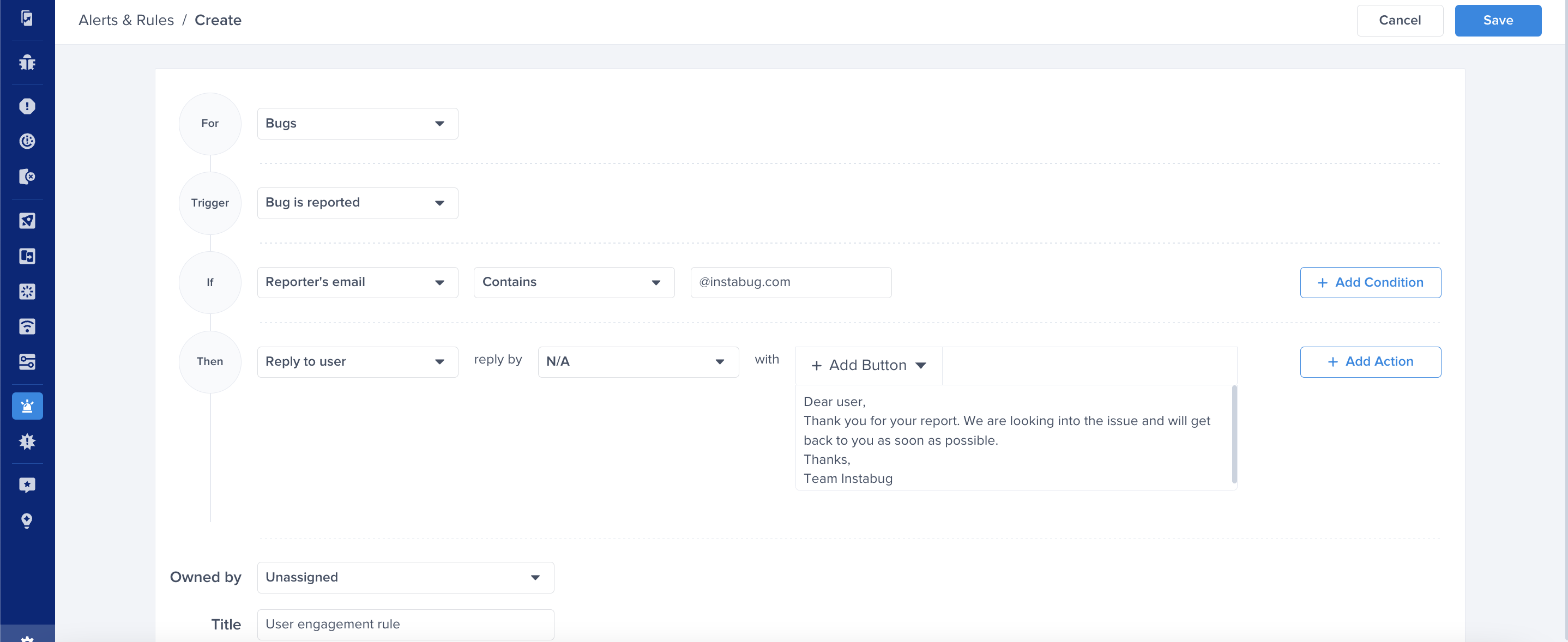
Because they’re highly customizable, rules are widely applicable to a variety of situations. Access your Rules page by clicking on the lower-left corner of your dashboard, and you’ll find Rules in your Settings menu. You can personalize your rules using custom or pre-set events, attributes, and more. Customizing your rules is the quickest way to have instantly organized feedback.
Syncing with third-party tools
Luciq's internal organizational features aren't its only time-saving features. Over 75% of Luciq users leverage integrations to keep their teams organized and efficient. There are customer support-oriented solutions as well as developer tools. Here’s what you can do with them.
Integrations and forwarding
Integrations help your team get in sync, so they can relay the most important information across channels and members more quickly and smoothly. You can use Rules to automate forwarding and make sure the right messages end up in the right inboxes.
Luciq works with the top tools for bug tracking, project management, customer support, and more, so you can keep your workflow simple and streamlined. Your integrations can be configured to automatically forward issues to the right people.
Developer integrations
Developers love Luciq because it allows their users, beta or live, to send them detail-rich bug reports just by shaking their phones. Let’s face it, your users aren’t going to log all those logs themselves. Luciq makes it easy for you to get the details without doing any detective work.
Integrations allow developers to save even more time with Luciq. Just as your users don’t enjoy logging all their details themselves (and with Luciq, they don’t have to!), you can set up Luciq so you don’t have to manually log bugs in your project management software or other developer tools. Using rules, you can get bug reports automatically forwarded to Jira, Asana, GitHub and more.
Speed up your workflow and ramp up your efficiency with these developer integrations for bug reporting and issue forwarding:
Jira
Get bug reports forwarded straight to your Jira project by creating Rules in your Luciq dashboard.

GitHub
Get bug reports sent straight to GitHub by the Luciq bot.
Slack
Get bug reports and feedback sent directly to your team's Slack workspace. Make customizations to the types of reports you receive by setting Rules from your Luciq dashboard.
Asana
Instead of manually logging tasks, just have them forwarded straight to Asana.

Pivotal
Convert bugs, feedback, and crashes into stories in Pivotal with just one click.
Trello
Get your bug reports converted into Trello cards when you integrate with Luciq.
Basecamp
Get all the contextual details your team needs, sent right to Basecamp.
Webhooks
Instead of manually logging tasks with Webhooks, just integrate with Luciq and they'll be forwarded right to you.
Clubhouse
Receive bug reports as stories when you integrate Luciq with Clubhouse.
GitLab
Get the bugs and the details converted into issues in GitLab as soon as they're reported.
FrontApp
Find issues in your FrontApp dashboard as soon as your users report them with Luciq.
Manuscript
Automatically receive cases in Manuscript, packed with all the details you need, with no effort from your users.
Teamwork Projects
Don't log your tasks in Teamwork manually when you can just have them forwarded automatically from Luciq.
Helpdesks and support
Using helpdesk integrations, you can specify which types of reports end up straight in your support inbox, so your customer service team can get in touch with your users and help them as soon as possible. Instead of asking your users for pertinent information like device, OS, location, or other details, they'll have all that information automatically—as long as it came from Luciq. They'll also be able to share issues with developers while including all the necessary information to get the problem solved as soon as possible.
You'll be able to send responses to your users straight from your helpdesk dashboard or get in touch using Luciq's in-app chats.
Zendesk
Get issues sent straight to Zendesk, with all the relevant details included. You can reply to the user straight from Zendesk or Luciq, and sync replies across the board, so everyone is kept in the loop.
FrontApp
In addition to bug reports for developers, you can also set rules to have customer support requests forwarded straight to your FrontApp dashboard.
Freshdesk
When you integrate Luciq and Freshdesk, issues and feedback can be converted into support tickets with just one click.
Don't see your favorite integration listed?
Are you using a program that's not on this list? Don’t worry. That doesn’t mean you can’t use it with Luciq. When you integrate Luciq with Zapier, you can have Zapier forward it to your platform of choice and get all the info you need, wherever you need it. Just set up a Rule for Zapier forwarding from your Luciq dashboard, and you're good to go.
Now you know all about organizing mobile app user feedback with Luciq, automating replies and setting up forwarding to third-party platforms like Zendesk, Slack, and Trello. How much time will you save this year?