












When it comes to setting up an effective bug reporting workflow, all apps have different requirements for each stage in the development lifecycle. At Luciq, we recognize that and try to accommodate the needs of apps in different stages of development. Customizing Luciq's SDK allows you to unlock its full potential and adopt a streamlined and effective workflow.
In this post, we will take a look at some of the best practices for using Luciq in mobile QA to make your testers' lives easier and minimize their workload.
Make it easy for your QA team to create a bug report
You can select one or more gestures to invoke Luciq from a variety of supported options. The available options are shake, screenshot, floating button, swipe, or manually like a button in your app's UI. If you're using Luciq in QA testing, we recommend one of the following invocation methods:
- The shake gesture is very intuitive and easily memorized. However, if your app already uses the shake gesture or involves movement, this probably isn't the best experience for your users.
- Using a floating button to trigger Luciq is the next best option to use in QA if you can't use the shake gesture. The floating button allows testers to easily report any bugs they find and the persistence of the button above your app's UI should not be bothersome for your internal testers.
For more details, check out the docs: iOS, Android, and React Native.
Bucket your reports and customize Luciq's prompt
Customize Luciq's default prompt
By default, Luciq's prompt includes four options and each of them directs the user to a different view:
- Report a problem: this option is used to report the defects and problems that users spot in your app. When chosen, users will be shown a list of report categories to pick from (if you have report categories enabled) and then opens a view where they can compose a new report, add a description, and attach screenshots and video recordings.
- Suggest an improvement: this option is used to suggest improvements and enhancements by your users, providing valuable feedback that will be very helpful for your product team. Choosing this option will direct them to a feedback form similar to a bug report.
- Ask a question: this is usually used for support questions and inquiries. When users select this option, it immediately starts a new live chat.
- Previous threads (the icon on the top right): when users tap on this icon, it opens their list of conversations with your team. A conversation is created when you reply back to a report that you received from the first two categories, or when the user starts a new chat through "Ask a question".
When using Luciq for bug reporting by your internal QA team, it is usually best if you only enable the "Report a problem" option or disable all options. This makes bug reporting the default invocation mode and will take your testers straight to the bug reporting flow to save them time. You might also want to add the "Suggest an improvement" option to allow your testers to submit feature requests that might occur to them as they go through the app. However, it is usually best to find a different channel for your QA team to submit feature requests internally and keep the bug reporting workflow as easy as possible.
Easily bucket your reports
If you look at the screenshot below, you will find a second list that appears when users tap on "Report a problem". You probably want to set up your own custom list of categories as explained here. These categories can be mapped to different teams or main components/features of your app. For instance, your report categories list can include Frontend, Backend, Design, and Content. Alternatively, if you're building a social media platform, for example, your list of categories might include Newsfeed, Profile, Notifications, Chats, and Settings.
Additionally, you can use rules to automate a lot of your workflow based on the category selected by your users.
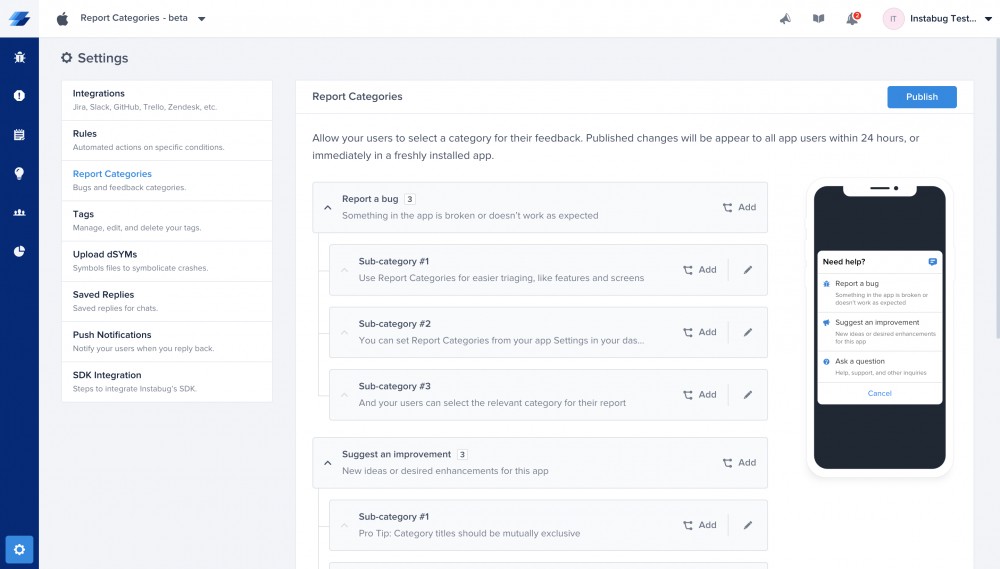
You can find more details about how to automate your workflow through customized categories here.
For more details about how to customize the initial Luciq prompt titled "Need help?" check the links here: iOS, Android, and React Native.
Automatically assign reports and set their priority
Save your team's time and help everyone focus on the issues relevant to them to accelerate your workflow. You can automatically route and assign new reports to the concerned team member to work on it. Simply create a rule that sets the assignee based on the report category or tags selected by your testers.
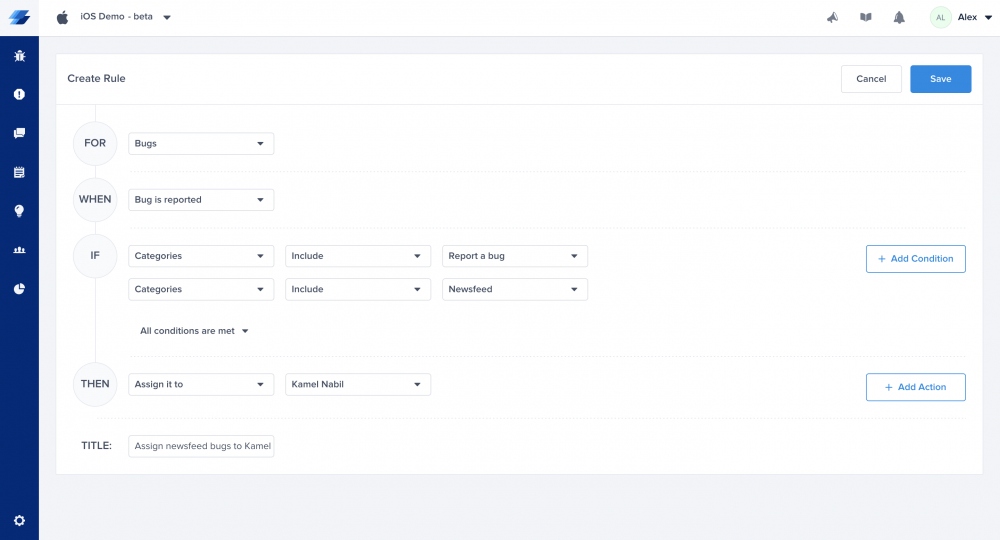
You can find more details about how to set up automation rules here.
Integrate Luciq with JIRA and sync your reports
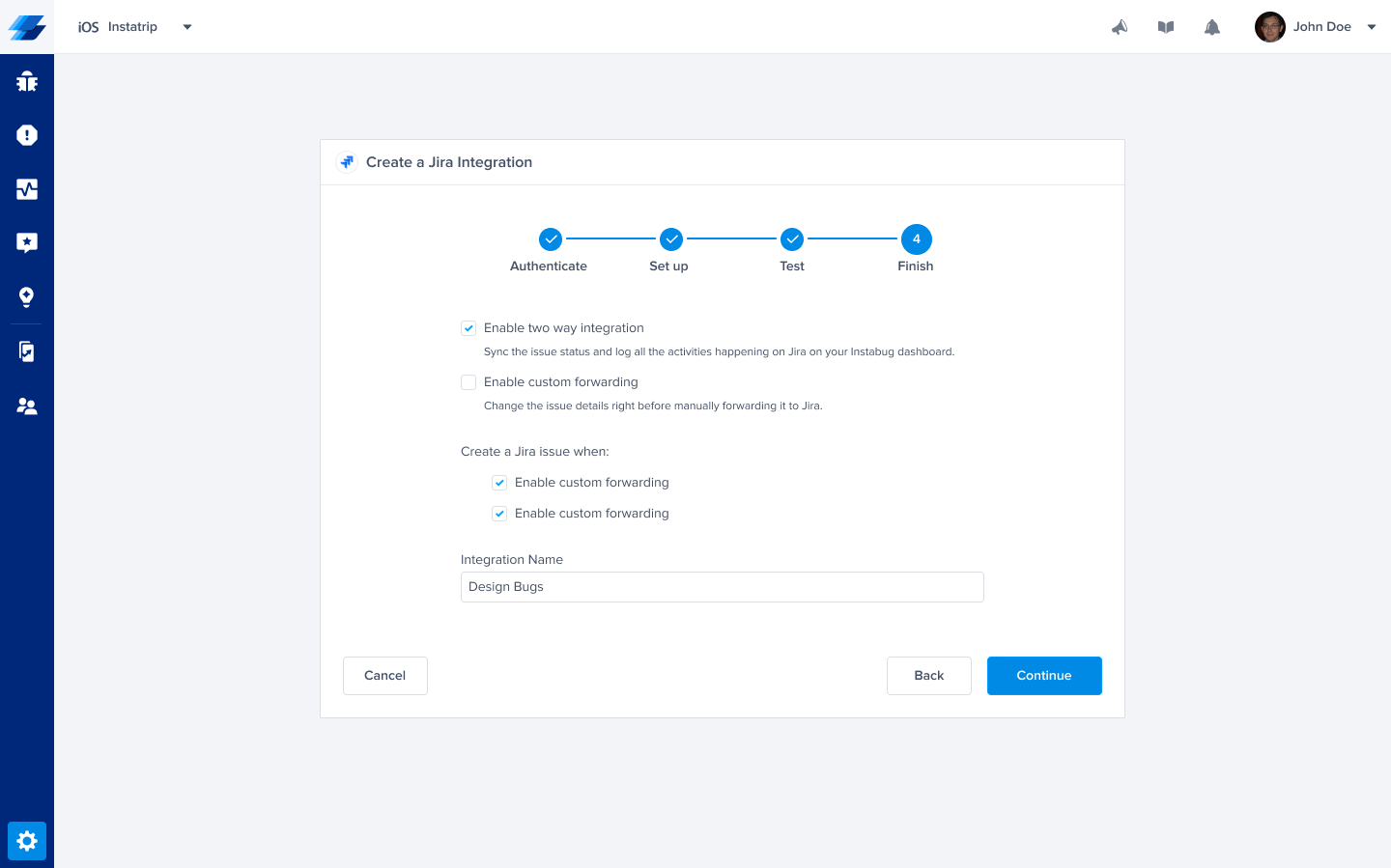
If your team uses JIRA, you can integrate with Luciq in a few simple steps. Now, whenever you receive any new report, chat, or reply, you can automatically or manually forward it to JIRA. Luciq's integration with JIRA is two-way, so any changes you make on your Luciq dashboard will automatically reflect in your JIRA project and vice versa.
You can find more details about how to integrate with JIRA here.
Keep your teams up to date through the Slack integration
Your product, support, QA, and engineering team are more likely to closely interact with your Luciq dashboard and keep track of the reports sent by your users. They are either triaging the reports, replying to your users, or fixing reported bugs. What about your business teams? Keeping your sales, marketing, content, and other business teams in the loop can be very beneficial. It brings your team closer to your users, making them more user centric and improving the overall culture.
Create a public Slack channel that all your team can join and call it #luciq_reports for instance. Then, on your Luciq dashboard, create a Slack integration, and make sure that "A new bug is reported" is checked in the last step.
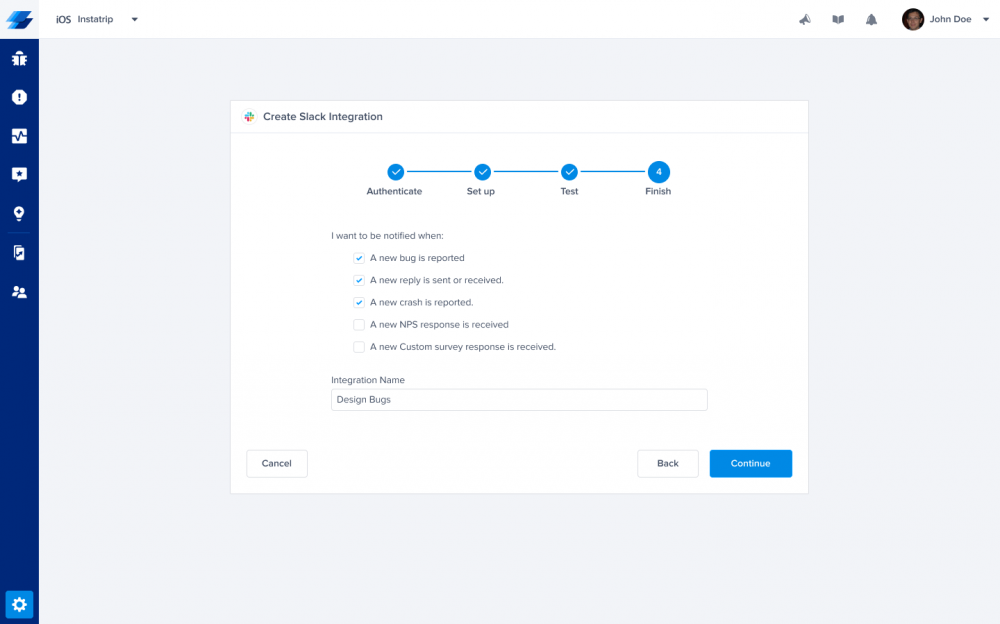
You can find more details about how to set up your Slack integration here.